Entering Data
Entering Basic Data
Once your Schedule Structure is set up, you’re ready to enter the core information that defines your school’s schedule: Classes, Teachers, and Subjects.
For more detailed walkthroughs on each area, see:
Classes
A Class in ScheduLearn represents a group of students (e.g., 7A, Grade 5, Year 10). Most schools create one Class per homeroom or section. Smaller schools may have only a single Class for each grade.
Creating a Class does not prevent you from scheduling multiple lessons at the same time, nor does it restrict tracked or split subjects (these should be configured later when setting up Subjects and Divisions).
To create a Class:
- Navigate to the Classes Page
- Click Add Class on the toolbar
- Name the Class (e.g., 7A, Grade 9) and save
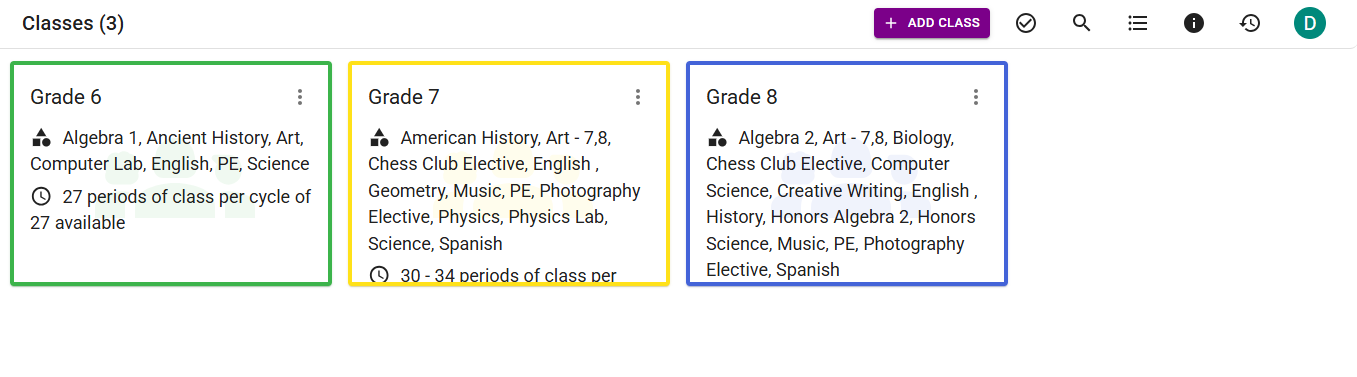 Figure 1 — The Classes Page
When first getting started, you will not have any Subjects yet. Once Subjects exist, they will appear automatically in the Subjects dropdown section on each Class card.
When getting started you can ignore:
- Class Divisions
- Edit Class Calendar
These are explained in the Classes Tutorial when you are ready for them.
Teachers
To add a teacher:
- Navigate to the Teachers Page
- Click Add Teacher
- Enter the teacher’s name and save
Tip
Teachers are sorted alphabetically. Many schools format names as Last, First so they are easier to locate.
We recommend waiting to add teacher availability constraints until after you have created some Subjects and generated your first schedule.
Subjects
A Subject is taught to one or more Classes, consisting of one or more Lessons.
- If Math is taught separately to 7A and 7B → Create two Subjects (e.g., Math 7A, Math 7B).
- If the two classes take Math together at the same time with the same teacher(s) → Create one Subject and select both Classes.
To create a Subject:
- Navigate to the Subjects Page
- Click Add Subject
- Fill out the fields described below
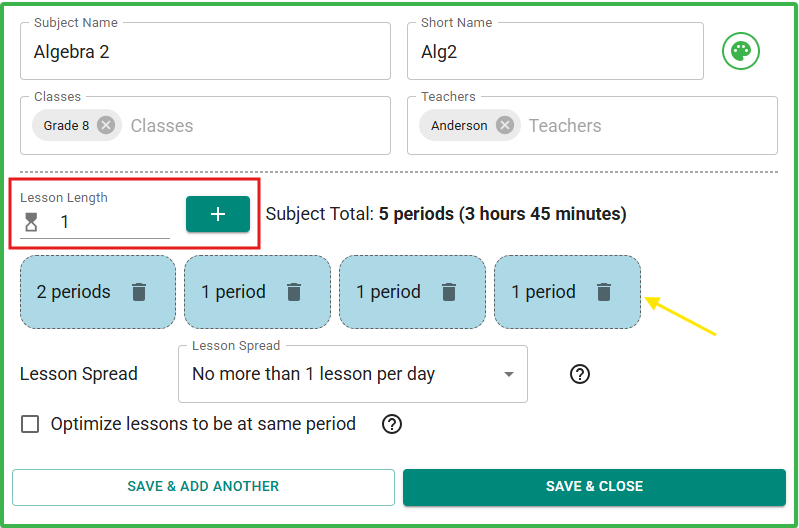 Figure 2 — Adding a Subject
Subject Fields
| Field | Description |
|---|---|
| Subject Name | The name of the subject (e.g., English, Math 9, Homeroom). |
| Short Name | A 4-character abbreviation used in compact schedule views. Automatically suggested. You can override it if desired. |
| Classes | Select all Classes that take this Subject. All selected Classes will have this subject scheduled at the same time. |
| Teachers | Choose the teacher(s) who teach this subject. Selecting more than one teacher could be useful for teaching assistants. You may also leave this field blank and come back later. |
Shortcut
When selecting Classes or Teachers, typing a name that doesn't exist will give you the option to create it automatically, without leaving the page.
Adding Lessons
Each Lesson represents one scheduled meeting of the Subject (see yellow arrow).
- Set the Lesson Length (See the red rectangle in Figure 2)
- Click + to add the lesson
- Lessons will appear listed below
In Figure 2, the Subject contains:
- 4 lessons total
- 1 double-period lesson
- 3 single-period lessons
Lesson Spread
The Lesson Spread controls how lessons should be distributed across the cycle. Common options:
| Option | Meaning |
|---|---|
| No more than 1 lesson per day (default) | Each lesson must be on a different day. |
| 1 day can have 2 lessons | Allows one day to contain two lessons. |
| No more than 2 lessons per day | Every day may contain up to two lessons. |
| At least 1 lesson per day | Ensures the subject appears every day when there are more lessons than cycle days. |
| None | No distribution preference — the scheduler may place lessons anywhere. |
If the selected Lesson Spread is impossible to satisfy, the scheduler will notify you when generating the schedule.
Optimize lessons to be at the same period
This feature can be useful if you want your schedule to be largely consistent day to day. If you enable this for a subject, the scheduler will do its best to place each lesson at the same period every day.
See the detailed Subjects Tutorial for advanced features such as modifying individual lessons and subjects with no class, ie. a teacher only subject (could be useful for scheduling weekly teacher meetings, for instance)