Schedule Structure
📅 Creating your Schedule Structure
Tip
Your schedule structure is the foundation of everything else in ScheduLearn. Setting it up correctly from the start will save time and prevent issues later. Modifying the structure after building your schedule can be complex.
Planning Your School's Schedule Structure
ScheduLearn organizes the school day using blocks of time, called periods. These periods are defined by the schedule structure you create.
For schools with a standard block schedule, creating the schedule structure is straightforward.
If different divisions have different schedules (e.g., Middle School / High School or Boys / Girls divisions), you will need to create a separate structure for each division. If unsure, contact support, getting this right early on will make the scheduling much easier.
For schedules that don't have set periods, you can still use ScheduLearn effectively. For example, creating 10–15 minute “mini-periods” allows flexibility. For instance, using 15-minute increments lets you schedule subjects in multiples of 15 minutes (e.g., 30 min, 45 min, 1 hr).
Building Your Schedule Structure
You can create a schedule structure in two ways:
- Schedule Structure Builder (see Figure 1). This is meant to help save you some time, but either option will work.
- Manual creation (start with an empty schedule; see Modifying Your Schedule Structure)
If your school has a different schedule structure for different divisions (ie. Middle School/High School or Boy Division/Girls Division) you will need to create a schedule structure for each division (see Multiple Schedule Structures).
Using the Schedule Structure Builder
The builder helps you set up your structure quickly.
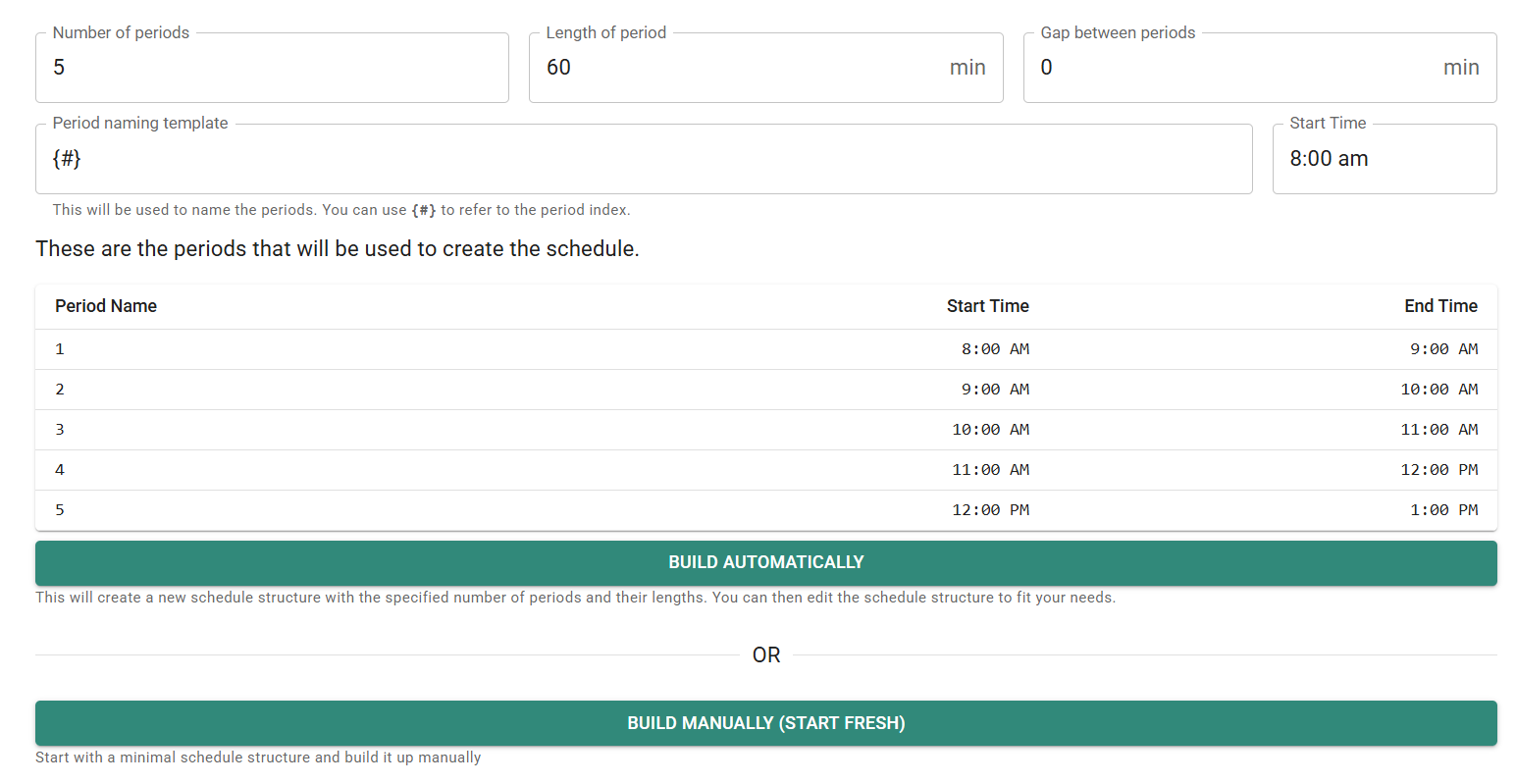
Figure 1: Schedule Structure Builder interface.
Fill in the following fields and then click Generate:
- Number of periods: Total number of time blocks per day, including academic periods and non-academic blocks (lunch, recess, dismissal, etc.).
- Length of period: Typical duration of a period (non standard period times can be adjusted in the next step).
- Gap between periods: Time between periods (e.g., 5 minutes). Set to 0 if no gaps are desired between periods.
- Start time: Start time of the first period; remaining periods are calculated automatically based on the length and gaps.
You can adjust all period names and times after generating the structure. Don’t worry if it’s not perfect at this stage.
Modifying Your Schedule Structure
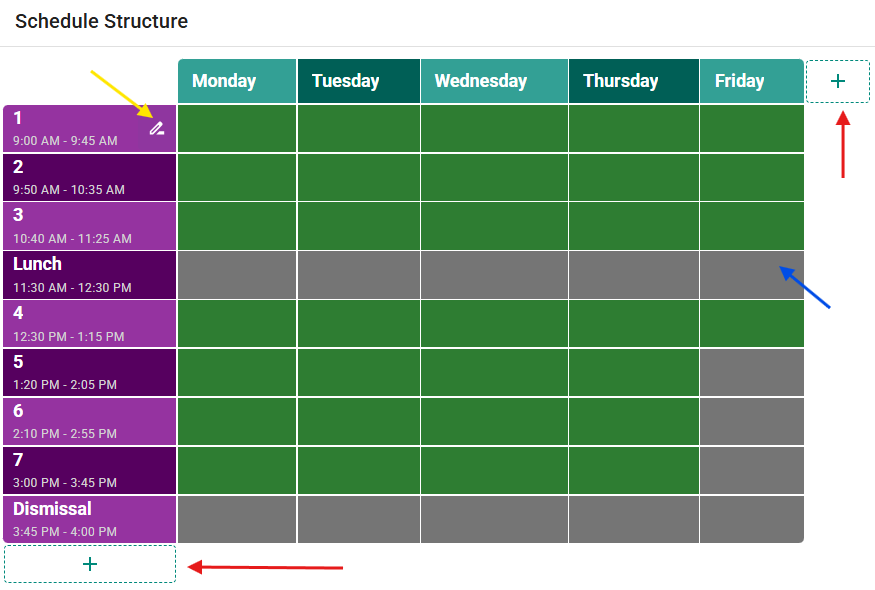 Figure 2: Modifying an existing schedule structure.
Whether you used the Schedule Structure Builder or started fresh, you will need to make adjustments to get the schedule structure set up properly.
Edit Period Names or Times Hover over a period and click the pencil icon (see yellow arrow in Figure 2). A modal will appear where you can change the period name, start time, and end time.
ScheduLearn can automatically adjust subsequent periods to maintain consistent gaps and durations. For example:
- Extending the first period from 9:00–9:45 → 9:00–9:50
- ScheduLearn prompts to shift all following periods forward by 5 minutes (Figure 3)
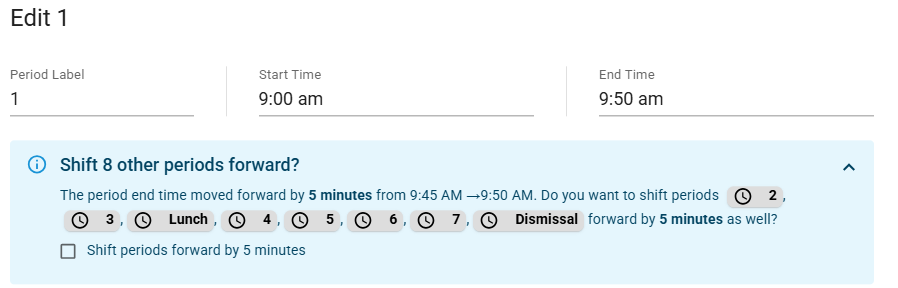 Figure 3: Shifting periods forward.
Similarly, moving a period earlier adjusts preceding periods (Figure 4).
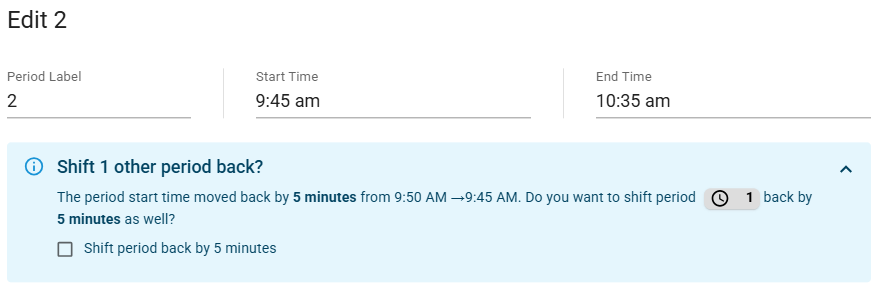 Figure 4: Shifting periods backward.
Non-Academic Periods – Toggling Cells By default, every cell is green. Click a cell to make it gray, indicating no lessons should be scheduled during that time (see Figure 2).
- Example: If Friday ends early, toggle the end-of-day cells gray as in Figure 2.
- Example: Block non-academic periods (lunch, dismissal) to prevent scheduling during those times.
Tip
Start with all non-academic periods blocked off. You can enable them later if needed.
Modifying Days Hover over a day name and click the pencil icon to rename it.
You may need to modify day names when:
- Your weekly cycle is different (e.g., school starts Sunday)
- Using an A/B schedule
- Running a non-weekly cycle (e.g., biweekly, 3-day cycle)
Adding or Removing Days/Periods
- Click the plus button next to the last day or period to add a new one (red arrows in Figure 2).
- You can only remove the last day or period. Removing it deletes associated constraints.
Multiple Schedule Structures
When might you need multiple schedule structures:
- If you have different grades or classes that work on different period times. For instance, you are building your Middle School and High School schedules together in ScheduLearn since they share teachers and classrooms, but the MS has 45 minute periods and the HS has 40 minute periods.
When do you likely not need multiple schedule structures
- If grades have lunch during different periods. The structure is the same, but times will still align between grades.
To add multiple schedule structures, start by creating just one structure as described here. To add another:
- Click the plus button (circled in red in Figure 5).
- Repeat the structure-building process.
If you don’t see the plus button, the feature may not be enabled for your account. Email support to activate it.
You can rename each schedule structure to give it a more meaningful name (e.g. Middle School, Boys Division, K-5, etc.)
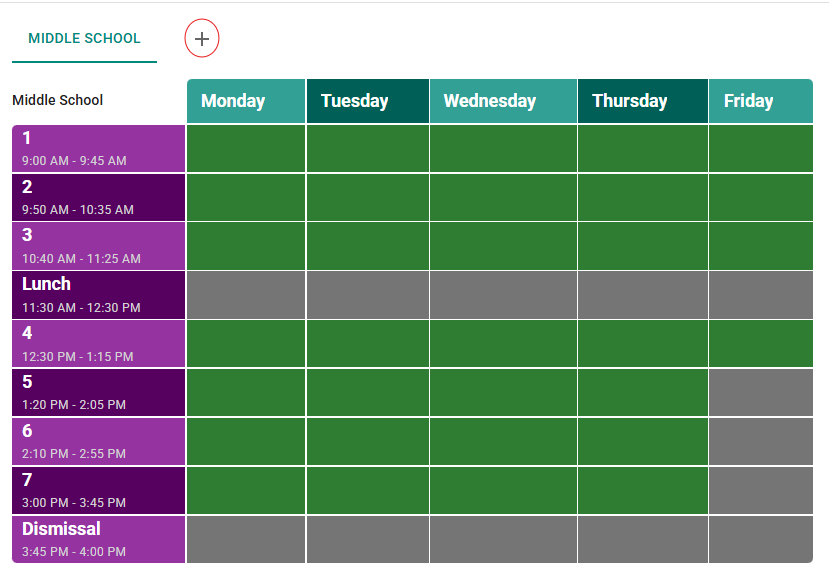 Figure 5: Adding an additional schedule structure.