The Schedule Page
The Schedule Page is where you'll spend most of the time. Here you generate your schedules, make modifications, and view your schedules.
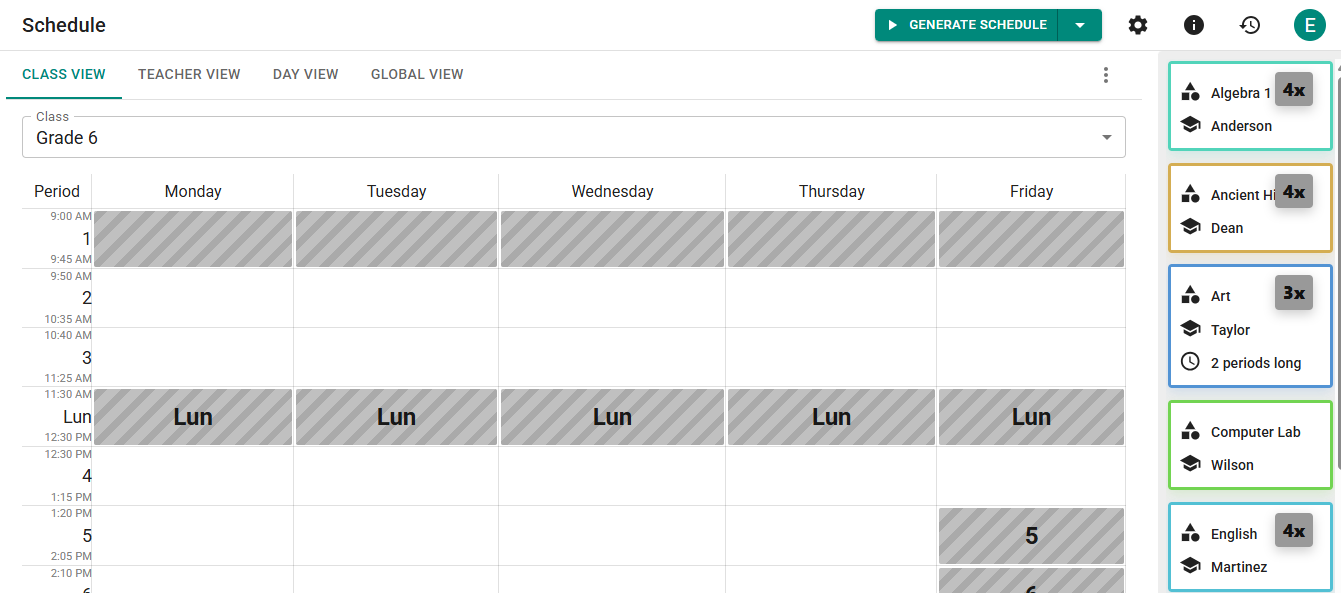
Your lessons will start in the staging area on the right hand side of the Schedule Page. The lessons of the same subject are combined, indicated by the grey box over the lessons indicating how many of those lessons are remaining in the staging area.
The staging area will only show lessons relevant to the view that you are seeing. For instance, if you are looking at 6th grade's schedule you will only see 6th grade lessons in the staging area.
ScheduLearn provides different Views for your schedules.
- Class View - a view for each class that you created
- Teacher View - view a particular teacher's schedule
- Classroom View - a view to see your classroom schedules (will only be visible if Classrooms are enabled)
- Day View - view everything that happens on a specific day.
- Global View - A comprehensive view of your entire schedule
You can also create your own custom views. Click the three vertical buttons to the right of view selector and click "Add new view" (green arrow in Figure X).
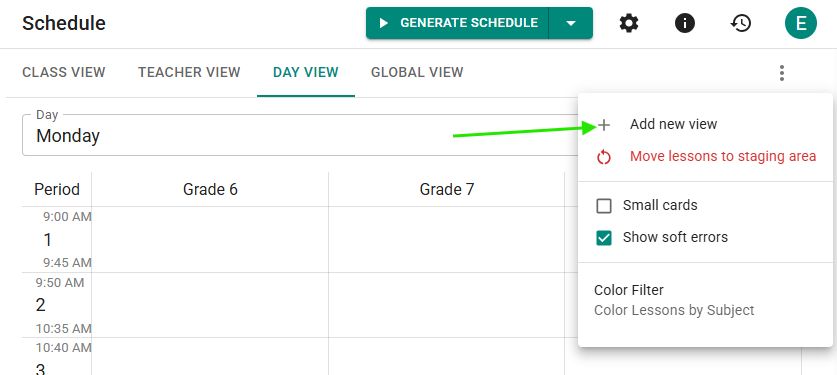 Figure X - Add a custom view
You should give the view a meaningful name and then select the Classes and Teachers that you want to be able to view together.
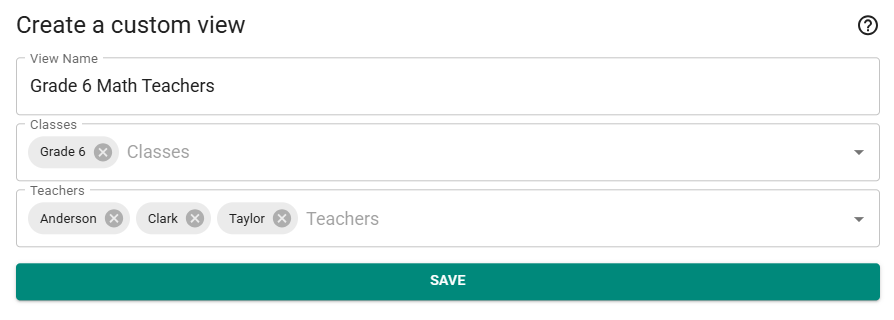 Figure X - A view to see 6th grade's schedule along with the 3 math teachers in Grade 6.
As an example, many schools will create a custom view with all of their teachers. That would allow them to see who's available to teach a class if they need to find a new teacher.
Drag & Drop
You can move lessons around by dragging and dropping them in every view except for the global view and any custom views.
When you have lessons at the same time, dragging either lesson will drag all connected lessons too. If you want to select just the single lesson you must hold down the Ctrl button while dragging the lesson.
If you move a lesson to a time cell that already has a lesson, they will swap places. If you only want to place the lesson without a swap happening, also use Ctrl while dragging the lesson. Ctrl + Dragging will allow you to handle a single lesson without anything else being affected.
Schedule View Options
There are a few actions and settings related to the schedule page. Click the 3 vertical buttons to the right of the view selector
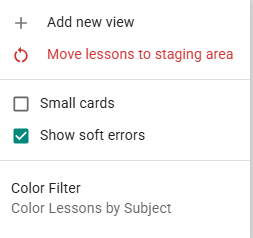 Figure X - Schedule View Actions/Options
- Add custom view - add a custom view
- Move lessons to staging area - reset the view you are. All lessons in this view will be moved to the staging area. If you want to reset the entire schedule do this from the global view.
- Small Cards - A more compact view of the schedule. Hover over any lesson to see its full details.
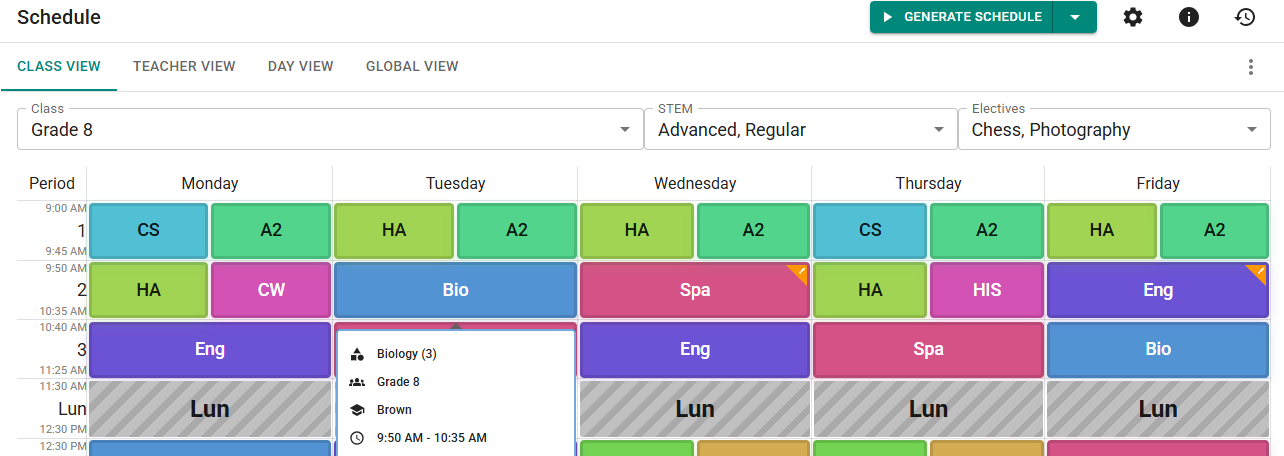
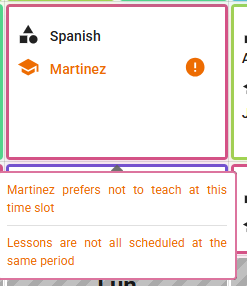
- Show soft errors - enabled by default. Whether or not we display unmet soft constraints on the schedule page.
- Color Filter - Choose between coloring the lesson by their subject color, the teacher color, or class color.
On the Global View and on custom views you have an additional option to view the schedule with the time options as rows or columns (default).
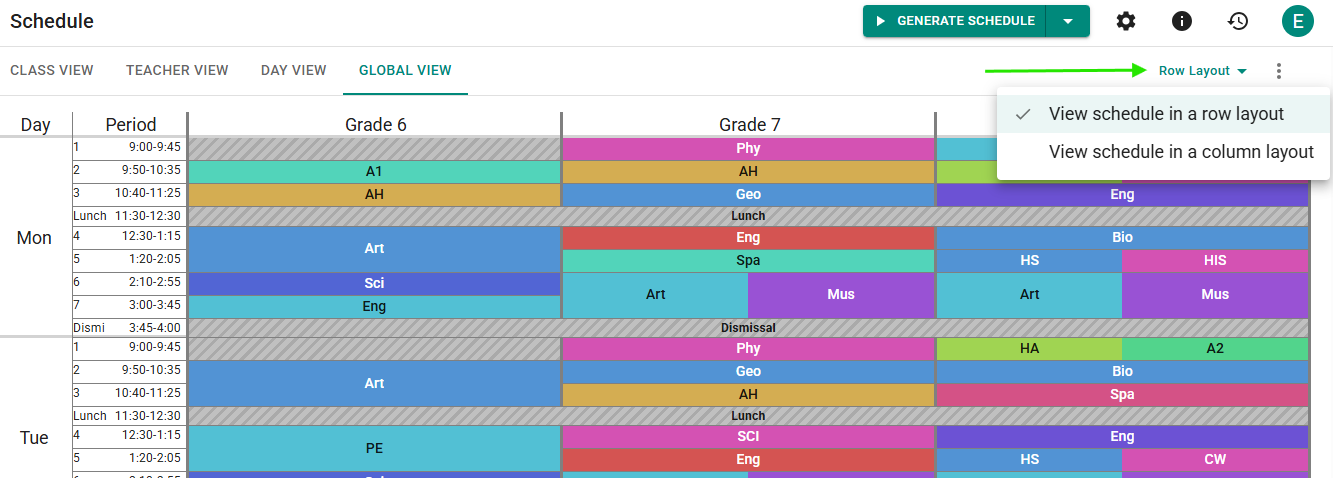 Figure X - change view from column to row view
Viewing problems from the Schedule Page
ScheduLearn will show you in real time if there are any problems with your schedule. There are 3 types of problems.
-
Reality problems: you've double booked a teacher or a classroom
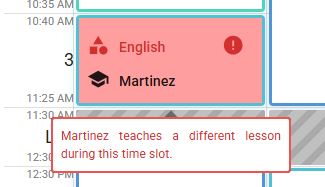
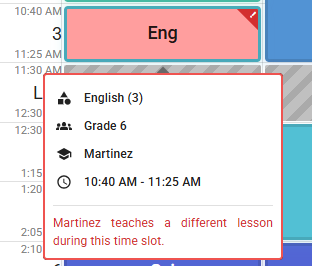Figure X
-
Unmet Hard Constraint A hard/red constraint is not being met.
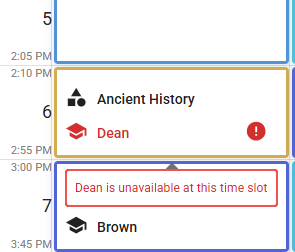 .
.
 .
.
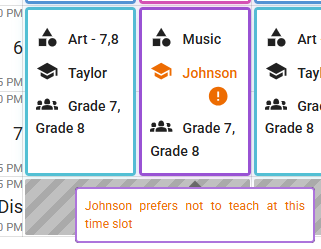
- Unmet Soft Constraint
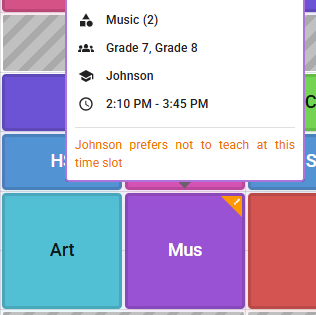 .
.
Solver Settings
To open the solver settings click the settings/gear icon on the toolbar of the Schedule Page.
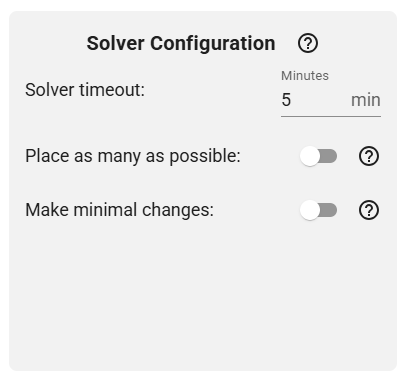
Solver Configuration
-
Solver Timeout - this is the maximum amount of time that the solver will take to generate the schedule. Note, that this is only the amount of time it spends trying to actually build the schedule, there are certain setup steps that happen when you generate the schedule that can take a little bit of time. The solver timeout is also not an indication of how long the schedule validation will take, although it does set an upper limit of testing each part of the schedule by the amount given. ScheduLearn may not use all of the alloted time if it can prove that it's found the best possible schedule (or a scheduling conflict) before the time is up.
 Figure X - the solver was able to prove that the schedule it found was optimal.
 -
Place as Many as Possible - if enabled, ScheduLearn will not return any scheduling conflicts because it will simply place as many lessons as it can without any conflicts. This can be an extremely useful tool for determining why a full schedule can't be generated. This feature can get you 99% of the way there.
-
Make Minimal Changes - If you are happy with how your schedule is currently set up, or if you've already started the school year and you need to make a change, this feature will tell the solver to keep as many lessons in the same place as possible for the next solve. We suggest not turning this feature on until you are nearing a final schedule. It essentially works by creating a soft constraint to keep each lesson in the same spot, so enabling this feature will come at the cost of meeting other soft constraints.
Constraint Weights
The panel for enabling constraint weights also appears on the constraints page. Constraint weights are covered in detail here
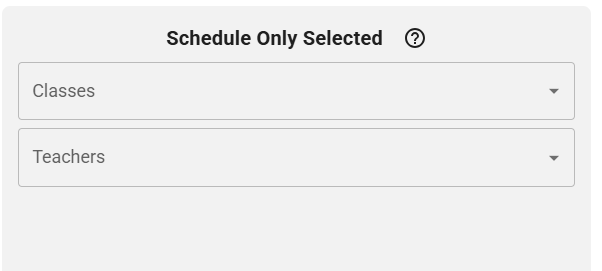
Schedule Only Selected
While building the full schedule is the eventual goal, it can sometimes be very useful to build just part of the schedule. If no classes or teachers are selected the full schedule gets generated. Otherwise, all lessons from the combined classes and teachers will be generated.
If the Classrooms feature is enabled, you'll be able to select based on classrooms as well.
Enabling Classrooms
Under "Other Settings" in the Solver Settings, you can enable the Classrooms feature.
A note was left behind by the developers
We must find a better place to put this. Until then...
Generating and Validating the Schedule
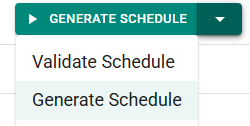
There are two primary options for interacting with the Scheduler. Validate and Generate.
Use the down arrow to the right of the button to choose between Validate and Generate.
Validate
Validating the schedule will attempt to (internally) build a schedule for every class and teacher in isolation. This can often detect problems quicker than generating the schedule.
Validating will also run a few additional checks such as ensuring each teacher and class has sufficient time to place all lessons assigned to them.

Generate
Generating the schedule will still find scheduling conflicts like the Validation, but it doesn't run any additional checks. And unlike the Validation, it will identify scheduling conflicts between entities (ie. between two classes or teachers, not isolated to a single item).
Generation is often very quick, in many cases 1-3 minutes should be sufficient. If you give it more time and it keeps timing out, this is an indication that there is a scheduling conflict or general problem with the schedule data that is preventing it from building the entire schedule and it's just not able to figure out why.
Don't worry too much about meeting the soft constraints as your still entering data and constraints. Just make sure a full schedule can be built. Then, you can set the solver timeout to 30 minutes or even longer and let it spend a lot of time optimizing for the soft/yellow constraints.
Maybe include here or in best practices:
You should not be concerned with generating your schedule fresh every time, or generating partial schedules. Nothing is lost due to the version history feature, so long as your constraints are set up properly every time you generate the schedule you'll get something that works.